Building a Flutter AlertDialog in just 15 minutes

The AlertDialog is basically a Popup in Flutter. Whenever you want to create a floating box that is centered on the page, you can simply use an AlertDialog. The implementation of the same is very easy and has been provided in-built with Flutter SDK. So, let's dive in… 👻
What you’ll build?
In this tutorial, you’ll build a mobile app featuring an AlertDialog / Popup in Flutter. The AlertDialog will have the following features:
Animated loader GIF
Customized actions buttons
Curved Edges
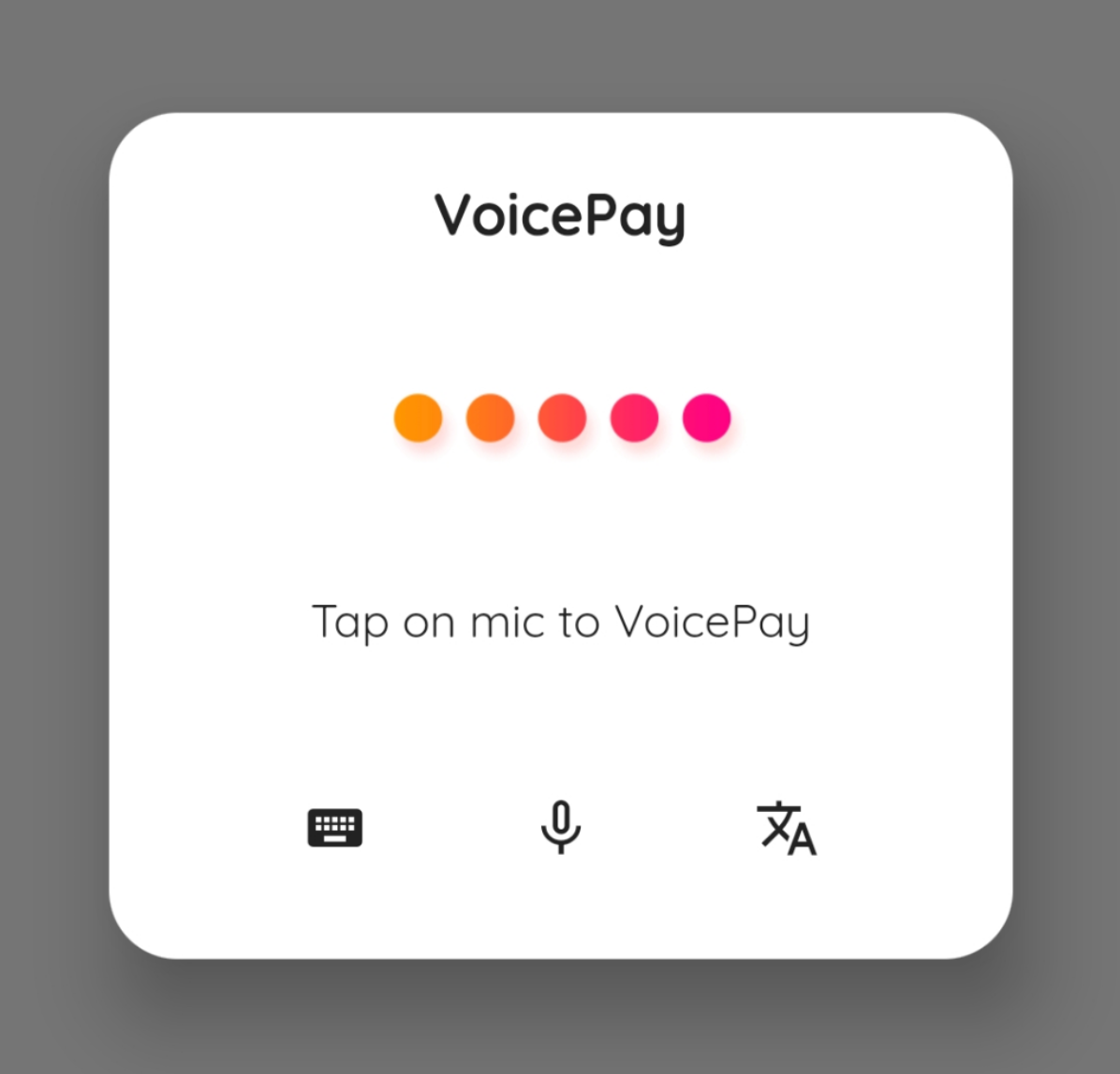
This tutorial focuses on adding an AlertDialog to the Flutter app. Non-relevant concepts and code blocks are glossed over and are provided for you to simply copy and paste.
GitHub Profile | shyvum
Setting up Flutter on your machine
The detailed steps to install Flutter on your personal computer & getting started with Flutter is available in the following blog post
AlertDialog constructor
const AlertDialog({
    Key key,
    Widget title,
    EdgeInsetsGeometry titlePadding,
    TextStyle titleTextStyle,
    Widget content,
    EdgeInsetsGeometry contentPadding: const EdgeInsets.fromLTRB(24.0, 20.0, 24.0, 24.0),
    TextStyle contentTextStyle,
    List<Widget> actions,
    Color backgroundColor,
    double elevation,
    String semanticLabel,
    ShapeBorder shape
})
Downloading Assets
Download the GIF by right-clicking, and saving it as listening.gif at /{%PROJECTROOT%}/assets/images/listening.gif

Credits: Bendt on Pinterest
Importing Assets
Import the GIF to your project by adding the file path to your pubspec.yaml file.
...
flutter:
  uses-material-design: true
  assets:
    - assets/images/listening.gif
...
Putting Code in action
Create a file named voicePayDialog.dart in the same directory as of your main.dart file and amend the file with the following code:
import 'package:flutter/material.dart';

class VoicePay extends StatefulWidget {
  @override
  _VoicePayState createState() => _VoicePayState();
}

class _VoicePayState extends State<VoicePay> {

  @override
  Widget build(BuildContext context) {
    return AlertDialog(
      shape: RoundedRectangleBorder(
        borderRadius: BorderRadius.all(
          Radius.circular(25),
        ),
      ),
      title: Text(
        'VoicePay',
        textAlign: TextAlign.center,
        style: TextStyle(fontWeight: FontWeight.w700, fontSize: 25.0),
      ),
      content: Column(
        mainAxisSize: MainAxisSize.min,
        mainAxisAlignment: MainAxisAlignment.end,
        crossAxisAlignment: CrossAxisAlignment.center,
        children: <Widget>[
          Image.asset('assets/images/listening.gif'),
          SizedBox(height: 10.0),
          Container(
            alignment: Alignment.center,
            height: 45.0,
            child: Text(
              'Tap on mic to VoicePay',
              style: TextStyle(fontSize: 20.0),
              textAlign: TextAlign.center,
            ),
          ),
          SizedBox(height: 30.0),
          Row(
            mainAxisSize: MainAxisSize.max,
            mainAxisAlignment: MainAxisAlignment.spaceEvenly,
            children: <Widget>[
              IconButton(
                icon: Icon(Icons.keyboard),
                onPressed: () {},
              ),
              IconButton(
                icon: Icon(Icons.mic),
                onPressed: () {},
              ),
              IconButton(
                icon: Icon(Icons.translate),
                onPressed: () {},
              ),
            ],
          ),
        ],
      ),
    );
  }
}
To show the AlertDialog / Popup add the following code to onPressed or onTap parameter of any button in your main.dart file:
onPressed: () {
  showDialog(
    context: context,
    builder: (BuildContext context) {
      return VoicePay();
    },
  );
},
Remember to import
voicePayDialog.dartinmain.dart
Building & running the application
Connect your Emulator or physical Android device to test the application.
Click on Build & Run.
And Boooom 🧨, your app is ready to launch.
Congratulations!
You have completed this tutorial and have built a Flutter app with an AlertDialog! Also, in the meantime, you integrated GIFs in the App.
Comments
Join the discussionNo comments yet. Be the first to comment.
15 Minute Recipes in Flutter
This series focuses on introducing you to short and crisp code snippets to build beautiful UI & concise UX with Flutter. These are specifically aligned to help newbie Flutter Devs.


